Each conference room has help built into the Crestron touch panel. This help can be accessed by pressing the question mark next to the button or function. Some common scenarios are outlined below.
When the conference system is in standby, the welcome screen will be displayed.
Welcome Screen
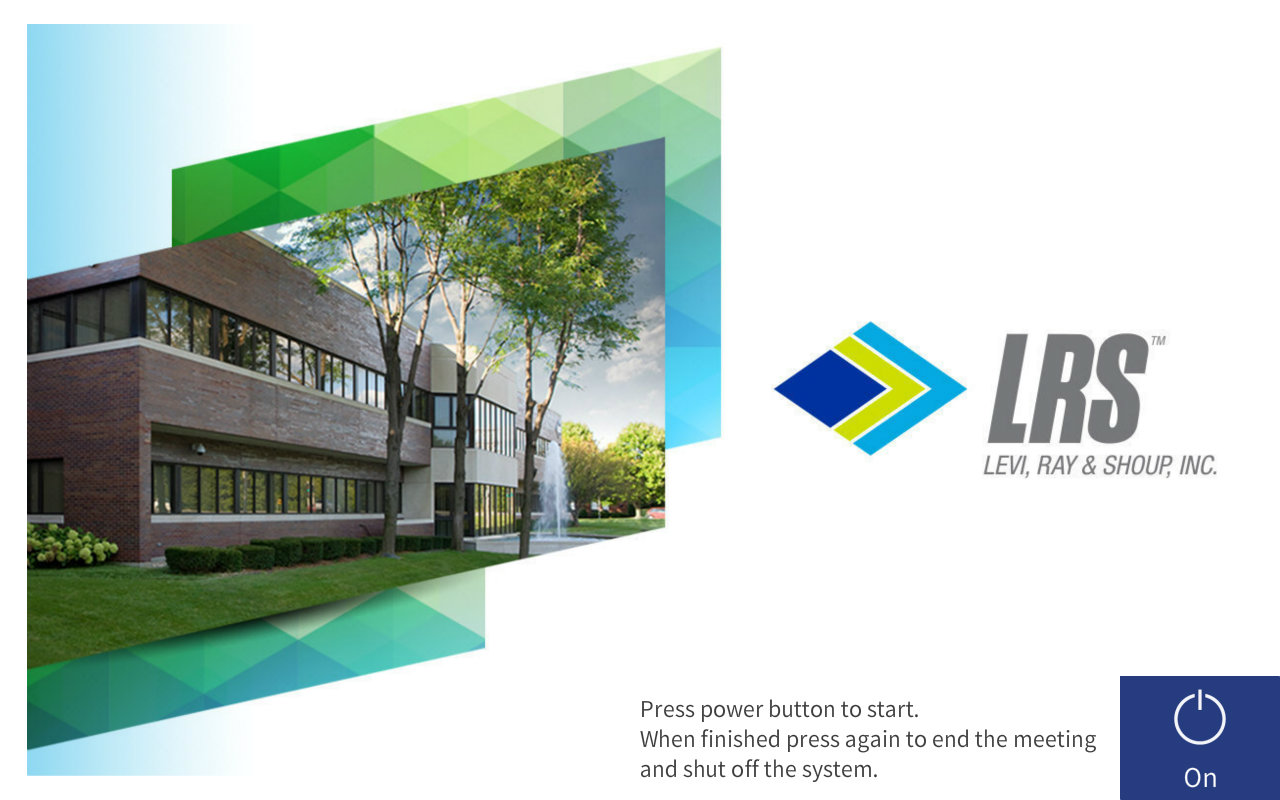
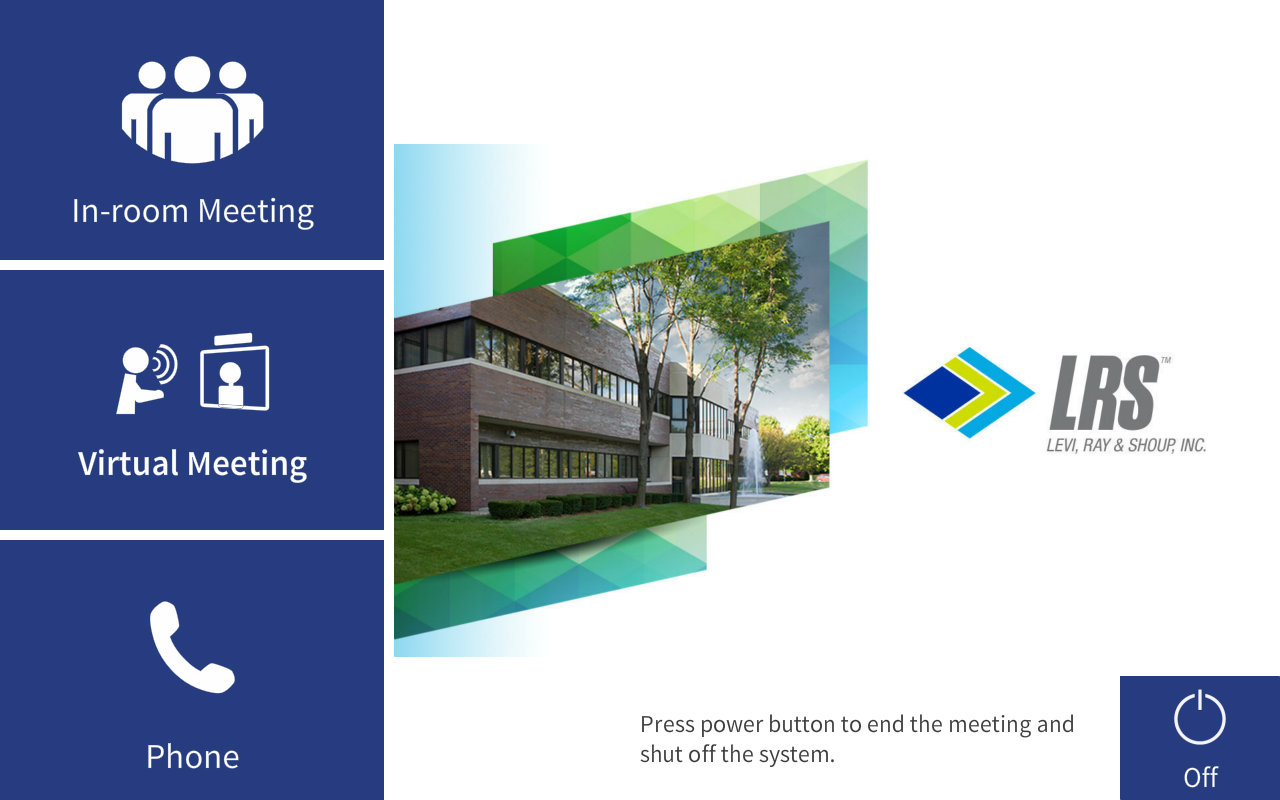
Press the "On" button to wake the system up and the welcome screen will appear. From this screen you will choose what to display on the monitor by the type of meeting you are attending.
- Choose "In-room Meeting" to list all the sources available for displaying on the monitor.
- This meeting type is typically used when you are displaying content only to people in the room.
- Choose "Virtual Meeting" to display the room PC and camera controls.
- This meeting type is used when you are connecting to a Teams or third party meeting.
Note: The room PC can also be accessed from "In-room Meeting". "Virtual Meeting" is a shortened way to prepare for a Teams or third party meeting.
In-room Meeting
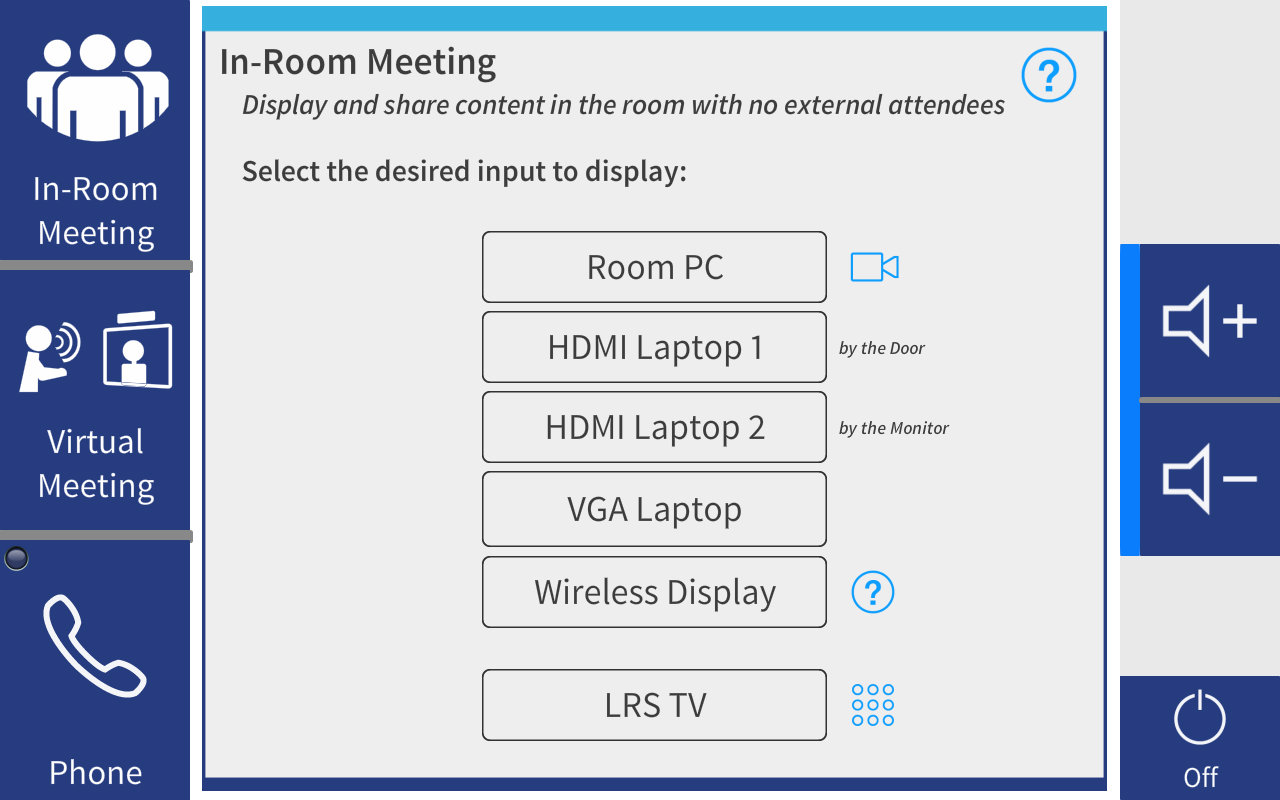
On the "In-room Meeting" screen, the available sources for the room are shown. The image below is an example from a large conference room. The room you are in may or may not have all the options shown below. If multiple HDMI sources are present, the location of each source will be indicated next to the button. You can access the camera controls by pressing the camera icon next to "Room PC".
LRS TV
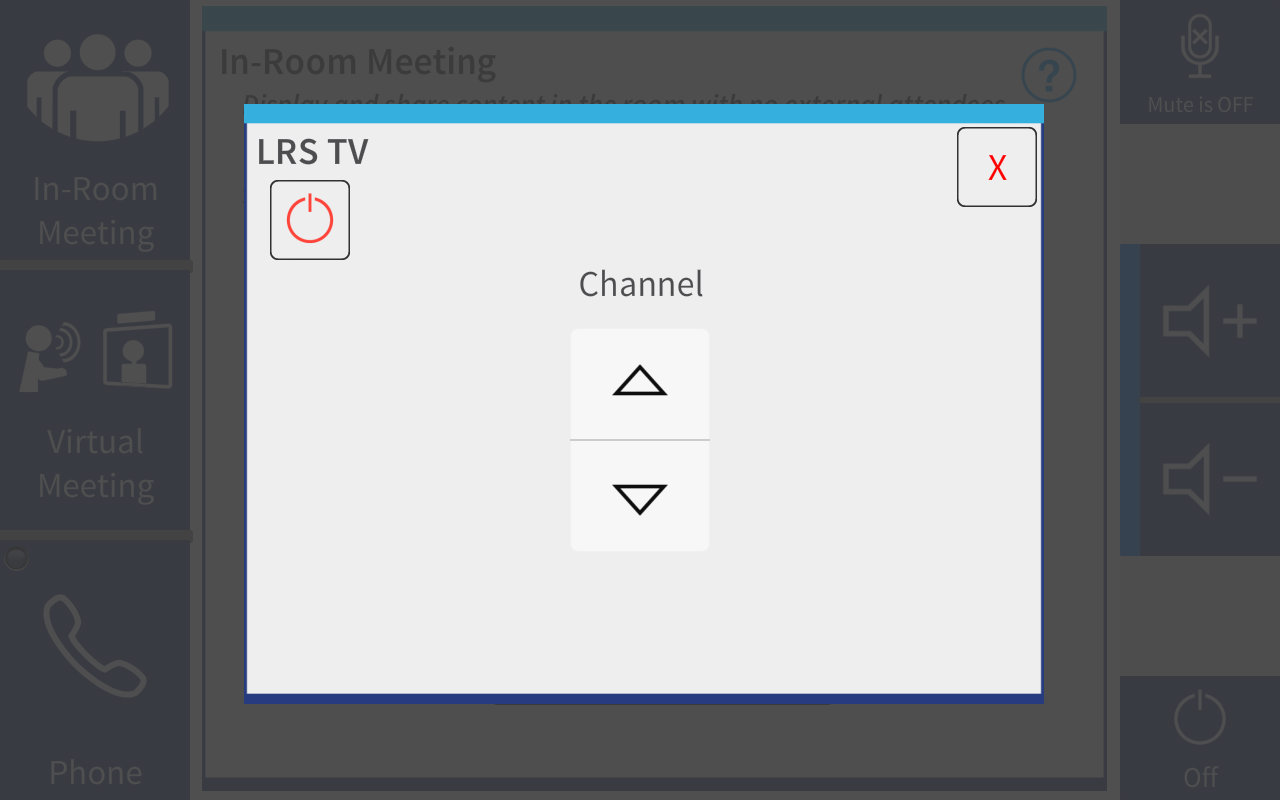
The "LRS TV" source displays LRS provided TV channels. These channels will be a mixture of cable TV channels and LRS channels. The volume control can still be accessed from this screen. The power button in the top left-hand corner is used to turn on the TV receiver if there is a problem. This button will normally not be needed.
Virtual Meeting
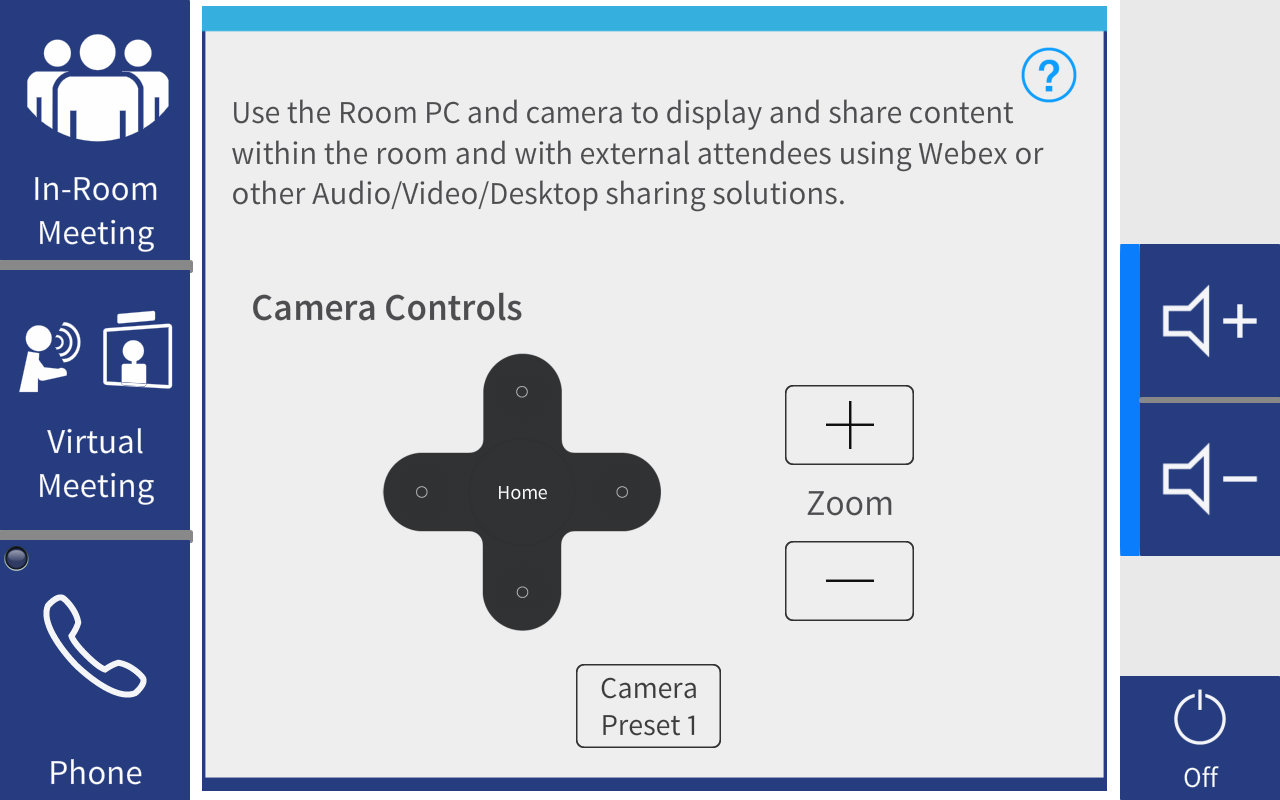
On the "Virtual Meeting" screen, the Room PC is selected and the camera controls are displayed. You can move the camera into a desired position by using the arrows and zoom buttons. "Camera Preset 1" is the position that will see the most participants. This is also the position at which the camera starts. This preset should be sufficient for most meetings.
Additional Features
Lighting and Shade Control
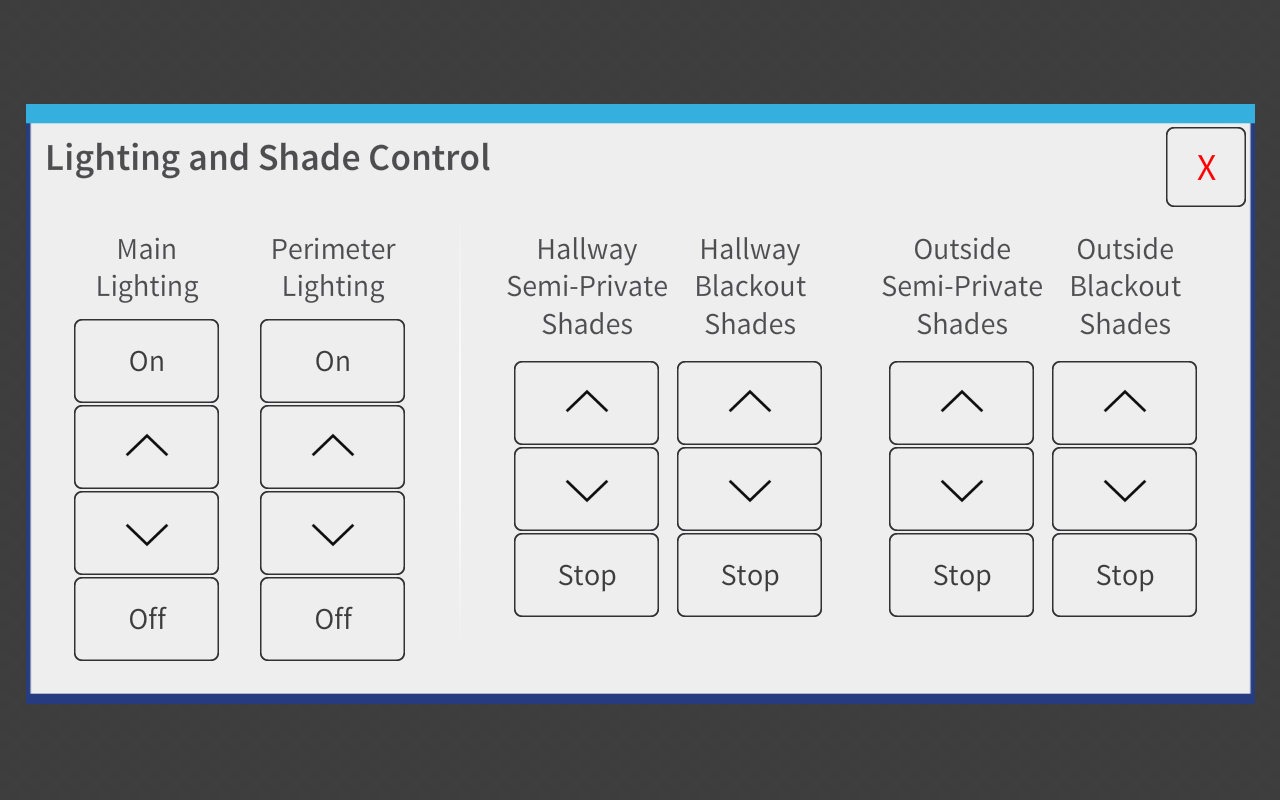
The lighing and shade controls can be access by pressing the light bulb icon on the black border of the Crestron control panel. Note: Not all rooms have this feature as shown below. If the light bulb icon is present on the control panel, some of the features shown below will be available.
Leaving a conference room
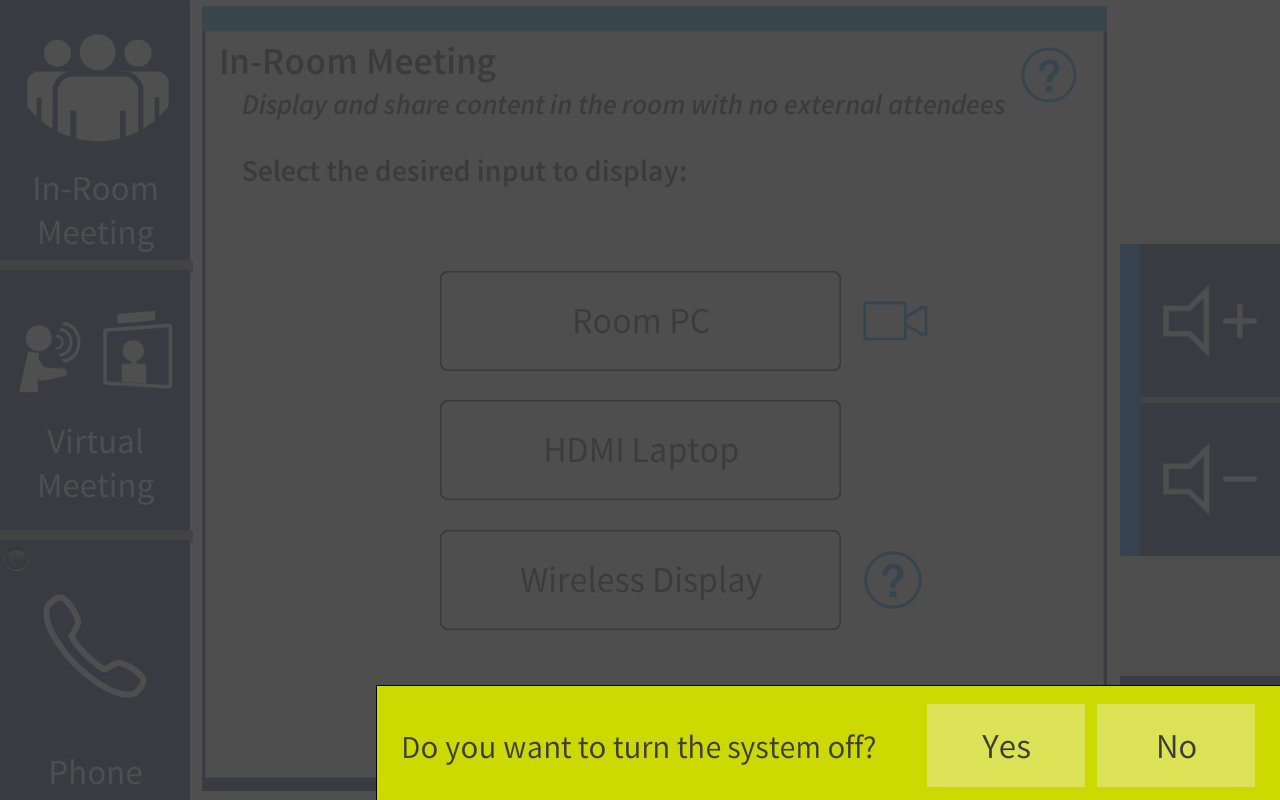
When you are finished in the room, press the "Off" button and confirm the shutdown. This will prepare the room for the next use.