
LRSGuest Wi-Fi access detailed instructions
The "LRSGuest" SSID allows network access to the internet that can be used by guests or LRS employees with unmanaged devices (mobile phones, non-LRS laptops, etc.). This network is isolated from the internal LRS network and allows no connectivity to internal company resources.
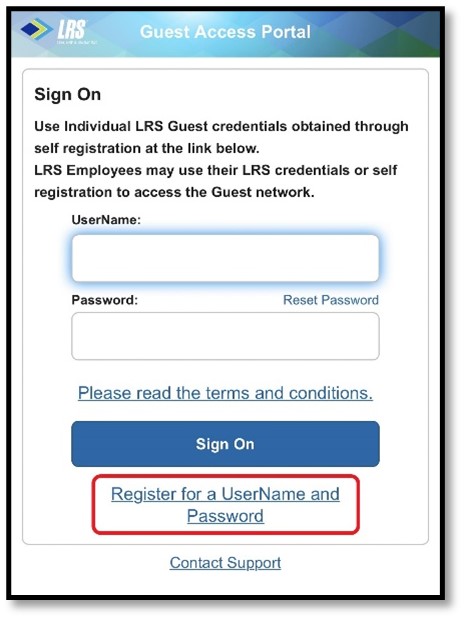
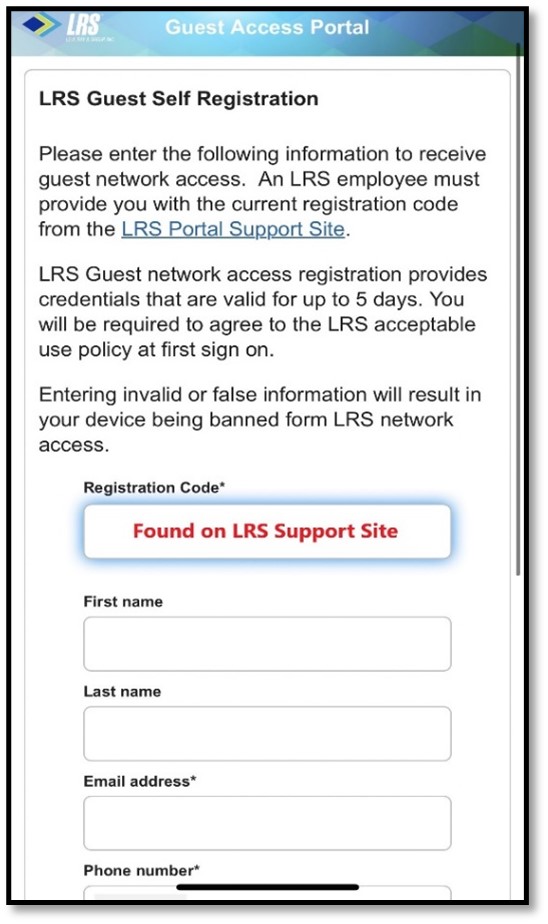
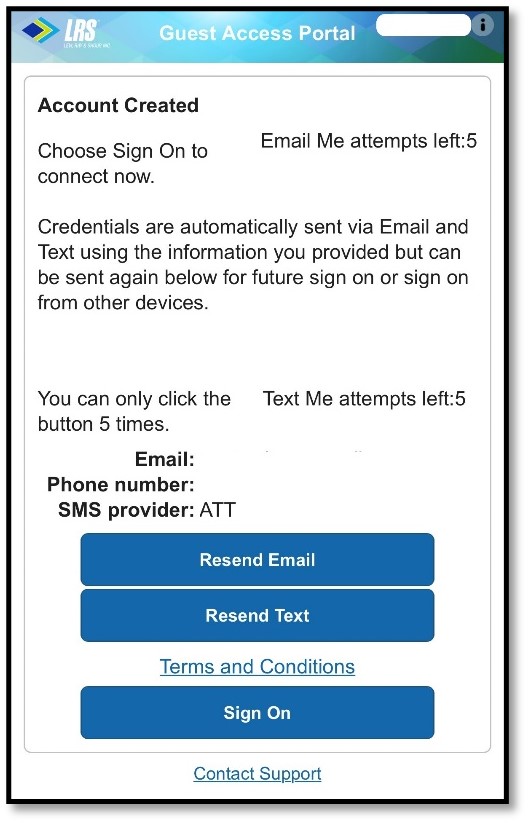
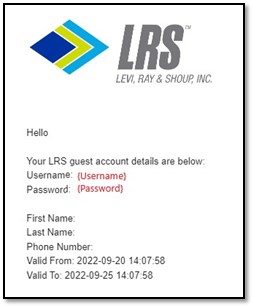
All guest users must self-register using the automated process pictured below. Upon connecting to the "LRSGuest" SSID, users will be redirected to the LRS Guest Access Portal. LRS employees must first provide their guest with the registration code available from the LRS Portal Support site. The registration code will change several times throughout the year but may change more frequently if unauthorized connections or suspicious activities are detected. Next, guests should provide general identifying information such as their name, phone number, and email address. Login credentials will be sent to the individual using the email or phone information (via text message) provided during registration. Note: Users do not have to wait for their login credentials to come through as a text or email before logging into the network. Simply press the "Sign On" option to connect to the network.