
General IT Recommendations
1) When scheduling a meeting that will be attended in a conference room, invite the conference room's account to the meeting. This will enable the conference room itself to start and join the meeting. Once the conference room starts the meeting, you may remote control your PC without swtiching users. This will result in a better conference experience, as all of your resources and settings are present on your PC and will not have to be configured on the conference room PC. Note: Do not invite the conference room account if your meeting will contain confidential content. If you do, meeting chat, content and recordings may be accessible after the meeting has ended by others that use the room.
An example of inviting the conference room to a meeting is displayed below: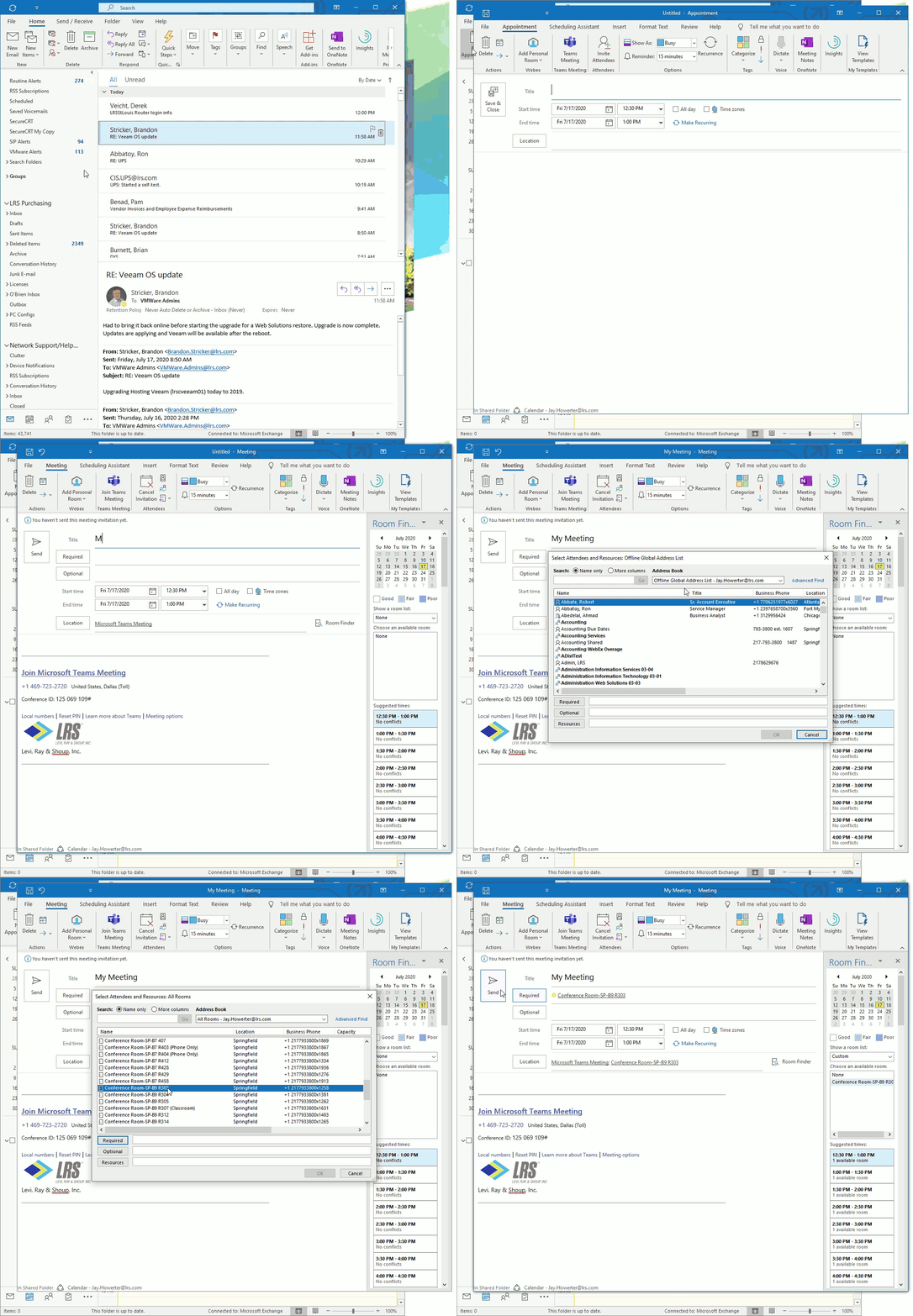
2) Instead of logging into the conference room PC, it is best to remote control the PC at your desk. This will result in a better conference experience, as all of your resources and settings are present on your PC and will not have to be configured on the conference room PC. By logging into your PC, you will be able to avoid having to configure shared Office activation or waiting for Outlook to sync your mail, to name a few benefits. If you need assistance controlling your PC, please contact the Help Desk.
3) If you must log into the conference room PC, please use the Microsoft Web Apps whenever possible (OneDrive, OWA, etc). This will keep you from having to sync content to the conference room PC.